


Add a Widget

Feb 01, 2026
 331
331
Follow these steps to add a new widget to your Home Screen:
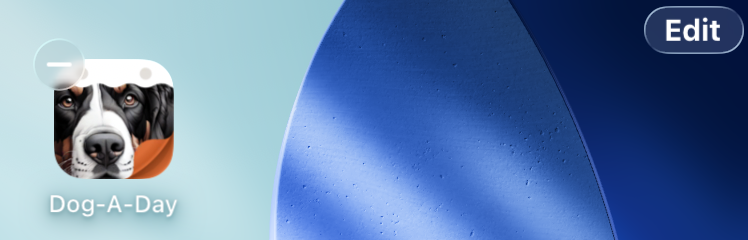
- From the Home Screen, tap on an empty area and hold until the app icons begin to jiggle.
- Tap the Edit button at the upper right corner of the screen.
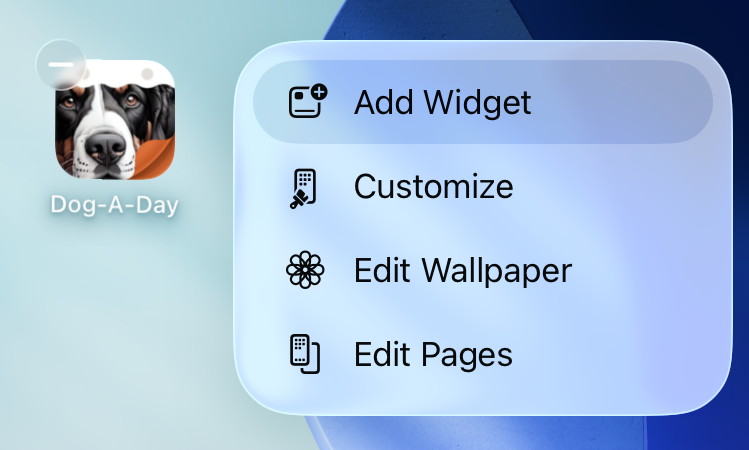
- Select Add Widget from the menu.
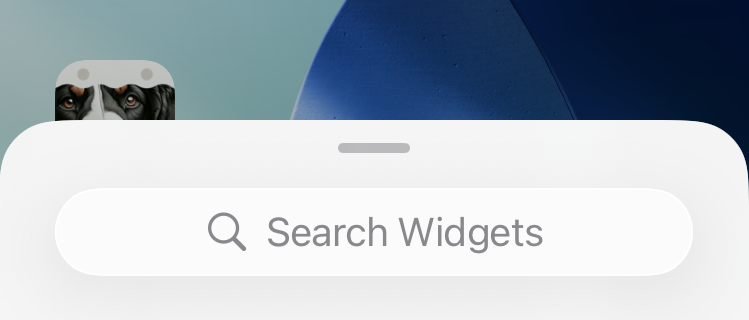
- Enter the name of the widget in the search field, e.g. Dog-A-Day.
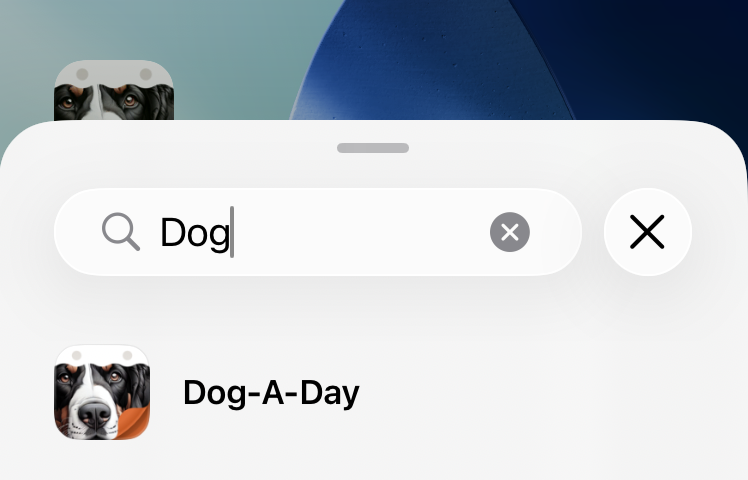
- Tap on the widget name in the search results.
- Swipe between the different widget sizes and appearances until you find the one you want to add.
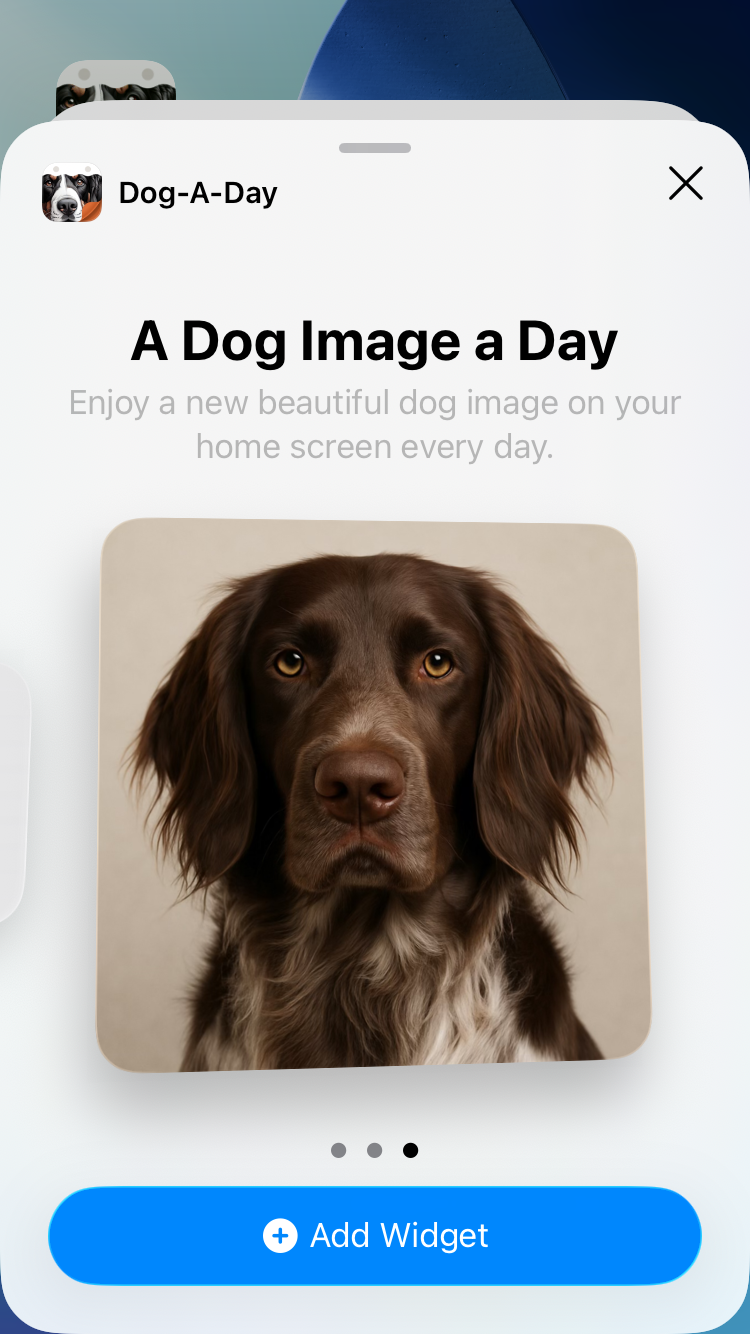
- Tap the Add Widget button at the bottom of the screen.
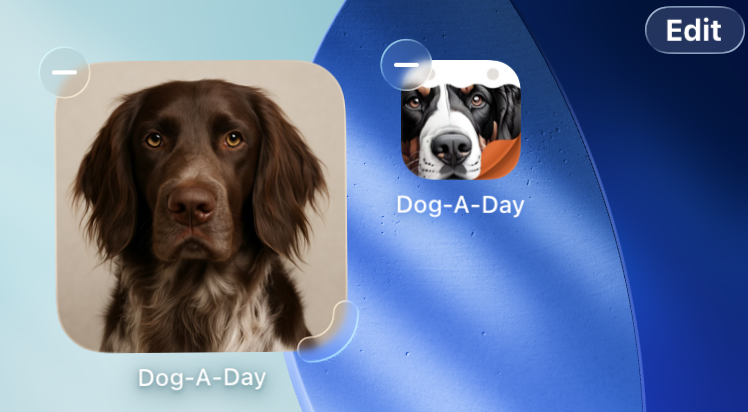
- Drag the widget to the desired place on your home screen.
See also Apple's instructions here:

